

ARnft with Three.js
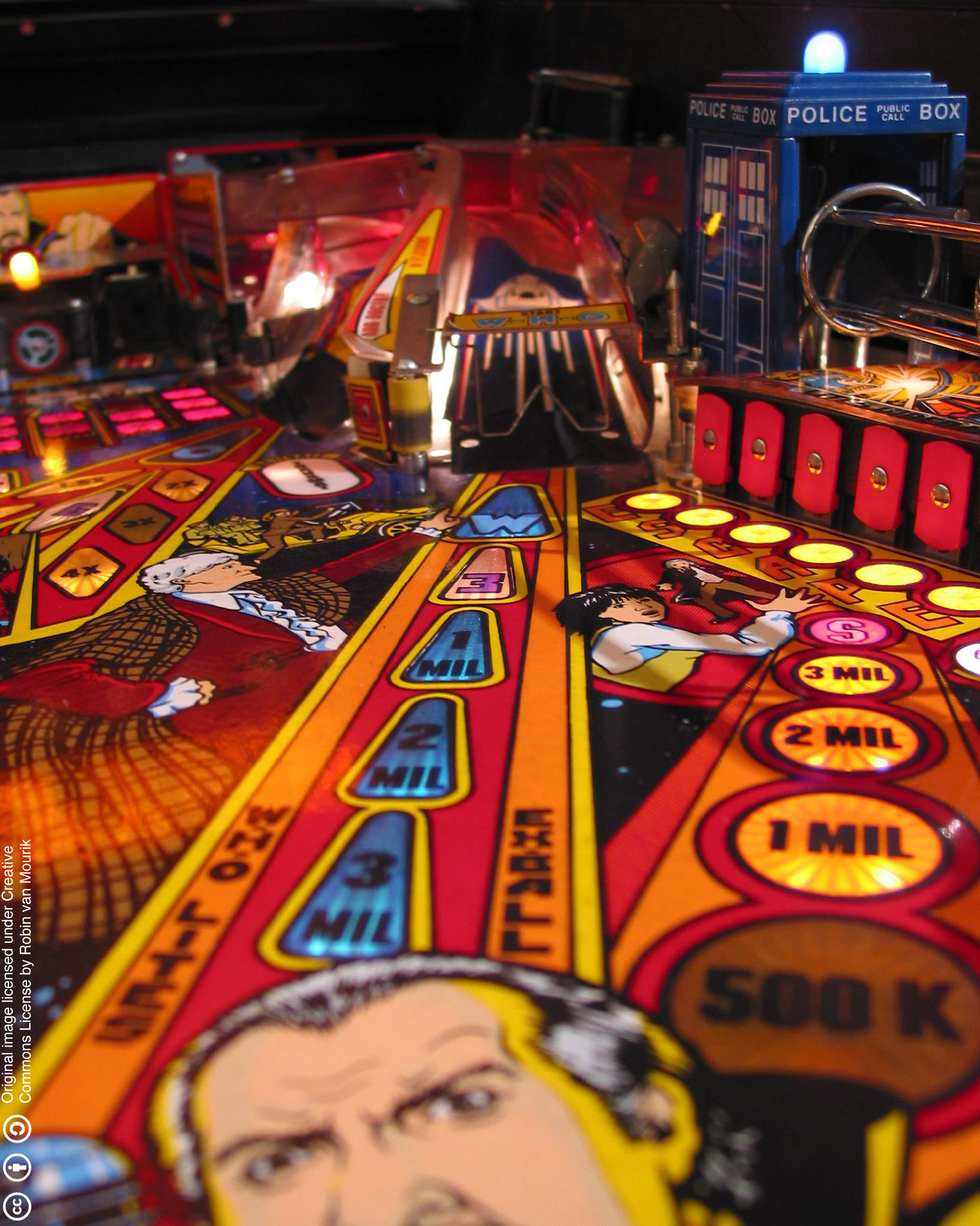
In this tutorial you build a small page that opens the camera, tracks the Pinball image and keeps a red cube on it. It takes about ten minutes. ARnft does the camera and the tracking, and ARnft-threejs puts your Three.js objects on the marker.
You can see the result first in the examples gallery.
Before you start
Section titled “Before you start”You need Node.js (only to start a local web server) and the files of the ARnft repository. Clone it, and work inside its examples folder: everything the page needs is already there.
git clone https://github.com/webarkit/ARnft.gitcd ARnftThese are the files you will use, all in the repository:
| File | What it is |
|---|---|
dist/ARnft.mjs |
the ARnft library (dist/ARnft.simd.mjs is the SIMD build) |
examples/js/ARnftThreejs.mjs |
the Three.js renderer for ARnft |
examples/js/third_party/three.js/ |
Three.js |
examples/Data/camera_para.dat |
the camera calibration file |
examples/DataNFT/pinball.iset, .fset, .fset3 |
the Pinball marker |
examples/css/nft-style.css |
a little CSS for the page |
To use your own image, make a marker with the NFT Marker Creator and read Make a good NFT marker first.
Step 1: the configuration file
Section titled “Step 1: the configuration file”ARnft reads its settings from a JSON file. Create examples/my_config.json:
{ "addPath": "", "cameraPara": "examples/Data/camera_para.dat", "container": { "create": true, "containerName": "", "canvasName": "" }, "videoSettings": { "width": { "min": 640, "max": 800 }, "height": { "min": 480, "max": 600 }, "facingMode": "environment", "targetFrameRate": 30 }, "loading": { "create": true, "logo": { "src": "Data/arNFT-logo.gif", "alt": "ARnft logo" }, "loadingMessage": "Loading, please wait..." }, "stats": { "createHtml": false }, "oef": true}What the keys do:
cameraParais the camera calibration file. It is a path from the site root (the folder your web server serves), not from the page.container.create: truelets ARnft create the video and the canvas for you.videoSettingsasks the browser for a camera: its width, which camera to use (environmentis the back camera) and the maximum frames per second sent to the tracker.loadingis the loading screen shown while the marker and the library load.oef: truesmooths the pose of the marker with the One Euro Filter, so the object shakes less.
Unknown keys are ignored without a warning, so check the names. The full list is in the ARnft page.
Step 2: the page
Section titled “Step 2: the page”Create examples/my_first_app.html:
<!doctype html><html lang="en">  <head>    <meta charset="utf-8" />    <title>My first ARnft app</title>    <meta name="viewport" content="width=device-width, initial-scale=1, minimum-scale=0.5, maximum-scale=1" />    <link rel="stylesheet" href="css/nft-style.css" />  </head>
  <body>    <script type="importmap">      {        "imports": {          "three": "./js/third_party/three.js/three.module.min.js",          "arnft-threejs": "./js/ARnftThreejs.mjs",          "arnft": "./../dist/ARnft.mjs"        }      }    </script>
    <script type="module">      import * as THREE from "three";      import arnft from "arnft";      import ARnftThreejs from "arnft-threejs";
      const { ARnft } = arnft;      const { SceneRendererTJS, NFTaddTJS } = ARnftThreejs;
      const width = 640;      const height = 480;
      ARnft.init(width, height, [["examples/DataNFT/pinball"]], [["pinball"]], "my_config.json", false)        .then((nft) => {          // A red cube, 180 units wide, standing on the marker          const cube = new THREE.Mesh(            new THREE.BoxGeometry(1, 1, 1),            new THREE.MeshLambertMaterial({ color: 0xff0000 }),          );          cube.position.z = 90;          cube.scale.set(180, 180, 180);
          // ARnft fires this when the video and the canvas are ready          document.addEventListener("containerEvent", () => {            const canvas = document.getElementById("canvas");
            const config = {              renderer: { alpha: true, antialias: true, precision: "mediump" },              camera: { fov: (0.8 * 180) / Math.PI, ratio: width / height, near: 0.01, far: 1000 },            };
            const scene = new SceneRendererTJS(config, canvas, nft.uuid, true);            scene.initRenderer();
            // Put the cube on the marker called "pinball"            new NFTaddTJS(nft.uuid).add(cube, "pinball", false);
            const tick = () => {              scene.draw();              requestAnimationFrame(tick);            };            tick();          });        })        .catch((error) => console.error(error));    </script>  </body></html>
Step 3: run it
Section titled “Step 3: run it”From the root of the repository, start a web server that doesn’t cache:
npx http-server -c-1Open http://localhost:8080/examples/my_first_app.html, allow the camera, and point it at the Pinball image, printed or on another screen. A red cube appears on it. To try it on a phone you need HTTPS: the first app guide shows how.
How the page works
Section titled “How the page works”- The import map tells the browser where
three,arnftandarnft-threejsare, so the code can import them by name. ARnft.init()starts everything: it opens the camera, loads the calibration file and the marker, and starts the tracking in a Web Worker. Its arguments are the video size, the marker paths without the extension and their names (both are arrays of arrays: one entry for one marker), the configuration file, andtrueif you want the frame-rate panels. It returns a promise of thenftobject;nft.uuididentifies this ARnft instance.- The cube is an ordinary Three.js mesh. The origin is the centre of the marker and the units are millimetres, so a 180-unit cube is about as wide as the Pinball marker, and
position.z = 90makes it stand on the marker instead of sinking into it. containerEventfires when ARnft has created the video and the canvas. That is the moment to build the scene.SceneRendererTJScreates the Three.js renderer on the canvas. The last argument,true, builds the camera fromconfig.camera.draw()renders one frame, so you call it in a loop.NFTaddTJS.add(object, name, objVisibility)attaches your object to the marker with that name. It centres the object on the marker, moves it with the marker’s pose on every tracked frame, and uses the last argument to decide what happens when the marker is lost:falsehides the object,trueleaves it where it was.
React to tracking
Section titled “React to tracking”ARnft announces what happens with events on window. The names contain the uuid and the marker name, so several markers don’t mix:
| Event | When | detail |
|---|---|---|
nftLoaded-<uuid> |
a marker has loaded | |
ARnftIsReady |
all the markers have loaded | |
getNFTData-<uuid>-<name> |
the marker’s data is available | dpi, width, height |
getMatrixGL_RH-<uuid>-<name> |
on every frame in which the marker is tracked | matrixGL_RH (the pose), name |
nftTrackingLost-<uuid>-<name> |
on every frame in which the marker is not found | name |
The last two repeat on every frame, they don’t mark the moment things change. To react once when the marker appears and once when it disappears, keep the state yourself. Add this inside the then block:
let tracked = false;
window.addEventListener(`getMatrixGL_RH-${nft.uuid}-pinball`, () => {  if (!tracked) {    tracked = true;    console.log("marker found");  }});
window.addEventListener(`nftTrackingLost-${nft.uuid}-pinball`, () => {  if (tracked) {    tracked = false;    console.log("marker lost");  }});
To turn everything off, call nft.dispose(): it stops the video stream and the tracking workers. The arNFT_event_example.html example in the repository shows it with a button, and also spins the cube.
Choose the camera
Section titled “Choose the camera”By default a desktop browser uses the camera selected in the browser, and a smartphone with several cameras uses the last one in the list. Two settings in videoSettings change that:
facingMode:"environment"for the back camera (the default) or"user"for the front one.cameraLabel: the first camera whose name contains this text, for example"Logitech".
If the browser reports a NotReadableError, the camera is probably in use by another tab or program, or cameraLabel points at a camera the browser can’t start.
Next steps
Section titled “Next steps”- Show a 3D model instead of a cube: the repository has glTF examples (
arNFT_gltf_example.html). - Track several markers at once with
ARnft.initWithEntities()(arNFT_multi_example.html). - Use the SIMD build,
dist/ARnft.simd.mjs, for more speed. - Read about all the options in the ARnft page, and see where ARnft comes from in Choosing a library.